Four screens, about five minutes, and one setting that matters more than the rest: the key you create here cannot withdraw your coins. Screenshots are from Bitkub's own interface.
The first two are Bitkub's rules and will stop you halfway through if you have not done them. The third is the one that protects you from everything else.
Bitkub asks for a 6-digit Google Authenticator code at the moment you create the key. If 2FA is not set up on your Bitkub account, the create dialog cannot be completed at all.
Bitkub only allows API keys to be created on its website, not in the mobile app. You can use the key from anywhere afterwards; it is only the creation step that is website-only.
Type the address yourself rather than following a link someone sent you, including this one. An API key handed to a lookalike site is worth exactly as much as your password.
The numbered markers in each screenshot match the numbers in the instructions above it.
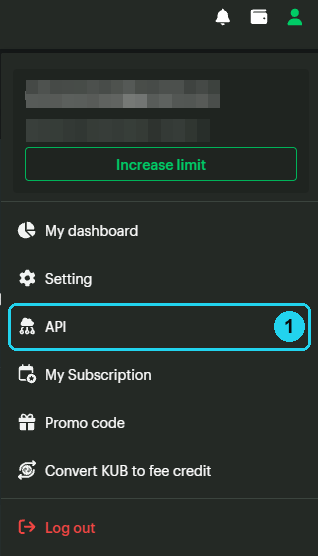
Log in to Bitkub, click your profile icon in the top right, and choose API 1 from the menu. It sits between Setting and My Subscription.
You can also go straight to api.bitkub.com once you are logged in, which lands on the same page.
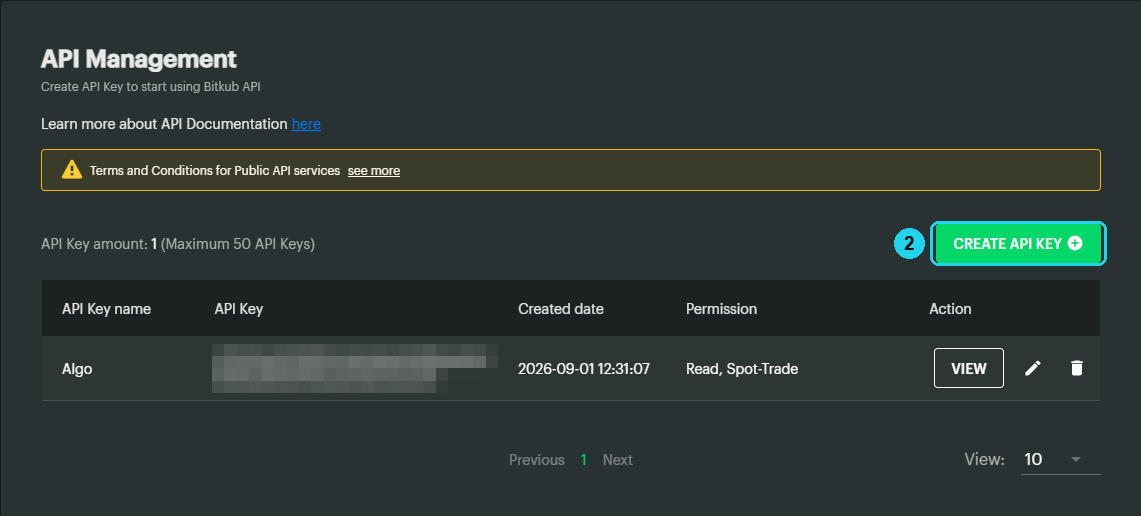
This page lists every key on your account and what each one is allowed to do. Click CREATE API KEY 2.
Bitkub allows up to 50 keys. Make a separate one for Vectixs rather than reusing a key you already gave to something else, so that revoking it later affects nothing but us.
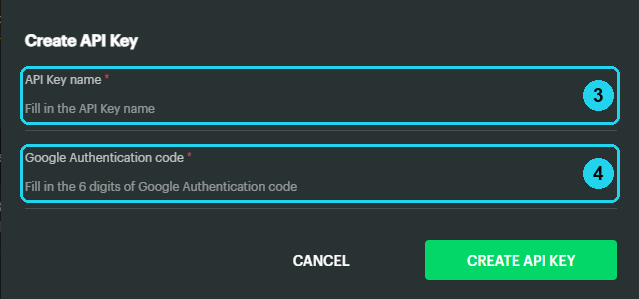
Give the key a name you will recognise in six months 3 — "Vectixs" does the job. Then enter the current 6-digit code from Google Authenticator 4 and confirm.
The next screen is the only time you will ever see the API Secret. Copy both the key and the secret somewhere safe before you close or refresh it. Bitkub cannot show you the secret again, and a key without its secret is useless — you would have to delete it and start over.
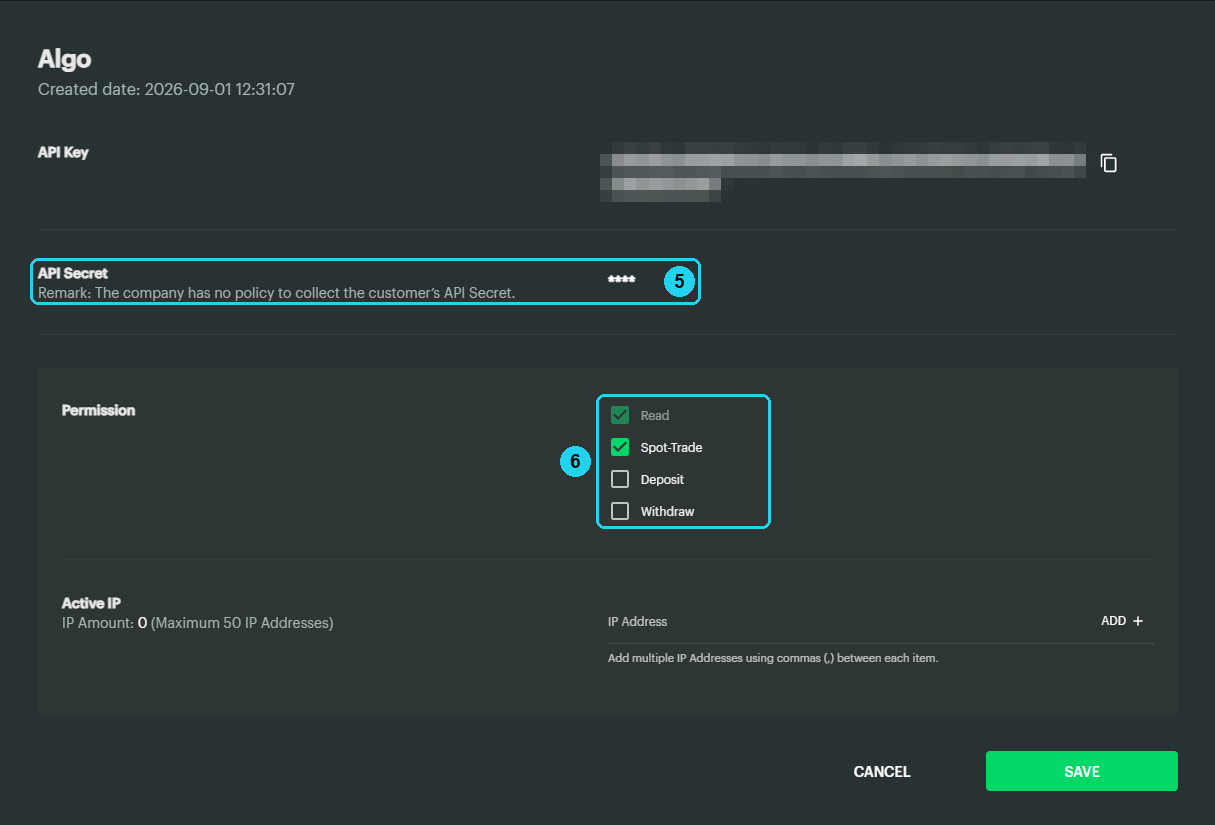
Once the key exists you can review it from the list. The secret is masked from here on 5, which is what that warning above was about.
Under Permission 6, leave Read and Spot-Trade ticked, and leave Deposit and Withdraw unticked. Read lets us see your balances and open orders, Spot-Trade lets us place and cancel them. That is the entire list of what a bot needs.
Leave Active IP empty, as it is in the screenshot. Restricting a key to particular servers is optional, we do not need it, and getting it wrong stops your bot trading.
Delete the key on Bitkub and create a new one. There is no way to recover or re-display a secret, for you or for us, and a key without it cannot be used.
The whitelist does not include the server the request came from. Check that both addresses above are listed and that "IP Amount" reads 2 rather than 0. If it still fails, clear the whitelist so trading resumes, then contact us.
No, and not because we promise not to. A key created as above has no withdrawal permission, so the request would be refused by Bitkub regardless of who sent it. There is no withdrawal call anywhere in our codebase.
Delete the key from the same API Management page. It takes effect immediately and needs nothing from us. Any bot using it simply stops being able to place orders.
Bitkub also publishes its own guide to API keys, which covers the exchange's side in more depth and is kept current by them: Bitkub Support — API →
Once saved, your key is encrypted at rest and never returned to your browser again, not even masked. You can replace it at any time; you can never read it back.